The Alerts tab allows you to configure email notifications for critical errors.
Setting Up Email Alerts
Enabling/Disabling Notifications
- Toggle the main switch to enable or disable alerts
- Disabled by default for new installations
Configuring Notification Recipient (Free)
- Enter a single email address in the recipient field
- Supports standard email formats
Adding Multiple Recipients (Pro)
- Up to 3 recipients can be added in the Pro version
- Use a separate input field for each recipient; do not separate Emails by comma
Alert Frequency Options
Hourly Notifications
- Receives alerts every hour with accumulated errors
- Good for active development or high-traffic sites
Twice Daily Notifications
- Alerts sent at 12-hour intervals
- Balances frequency and email volume
Daily Notifications
- Single daily digest of all errors
- Suitable for routine monitoring
Weekly Notifications
- Summary sent once per week
- Ideal for long-term tracking without clutter
Understanding Cron Schedules
- Alerts are triggered by WordPress cron jobs. The notification may be delayed if the site has low traffic.
- Next scheduled time is displayed in the interface
Error Level Selection (Pro Feature)
Understanding Different Error Levels
- Database Errors: Issues with database queries
- Fatal Errors: Crashes that stop script execution
- Parse Errors: Syntax issues in PHP code
Default Monitoring Levels
- Database Errors
- Fatal Errors
- Parse Errors
- Deprecated function usage
Additional Selectable Levels (Pro)
- Warnings: Non-critical issues that may become problems
- Notices: Informational messages about potential issues
- Custom: User-defined error types
Reducing Notification Noise
- Select only the most critical error levels
- Use another notification interval
Testing & Management
Sending Test Emails
- Click the “Send Test Email” button to verify the setup immediately after enabling notifications
Verifying Email Delivery
- Check your inbox for the test email
- Ensure emails aren’t being marked as spam
Viewing Next Scheduled Notification Time
- Displayed in the alert summary section
- Helps plan for expected email arrivals

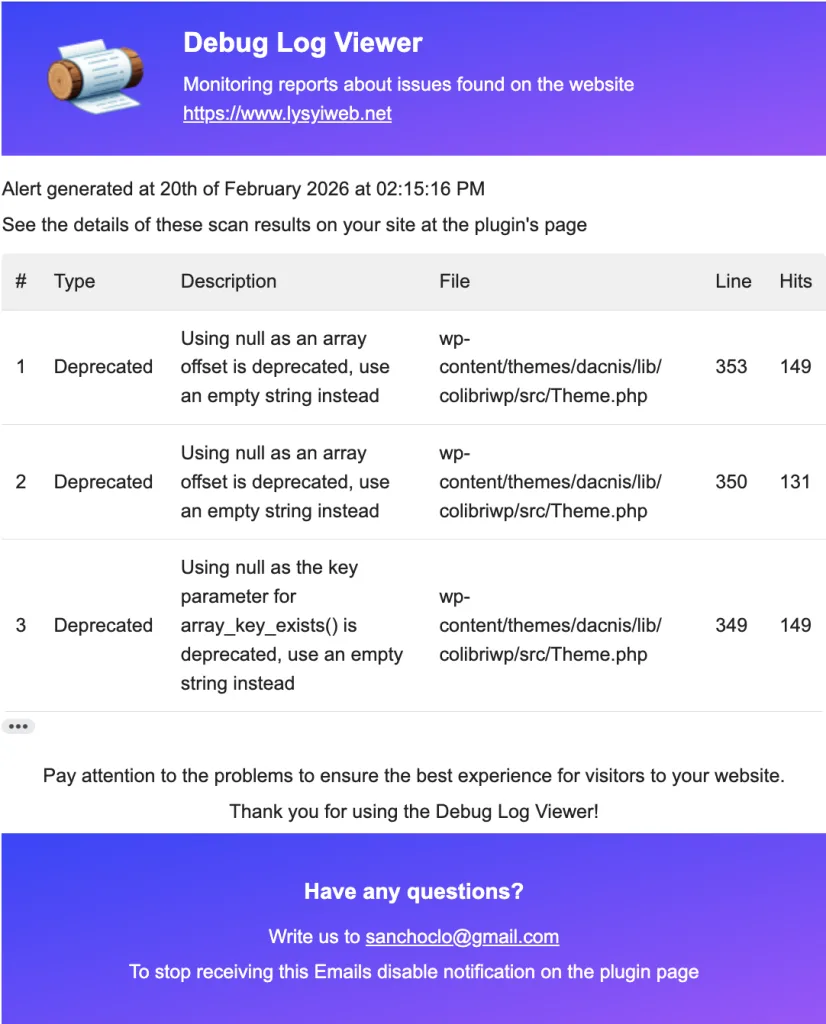
Example of incoming Email
For log file management, see the Cleanup Tab guide.


